


AI Home Design: Interior DecAI
4.71.14K Reviews
App Specs
- Version
- 1.5.9
- Updated On
- License
- Free
- Downloads
- 10,000,000+
- Developer
- Smart AI DEV
- Categories
- Art & Design
- Platform
- Android, iOS
Screenshots


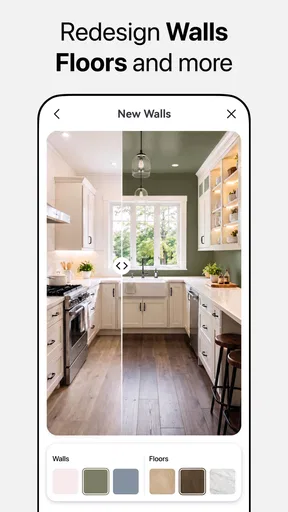
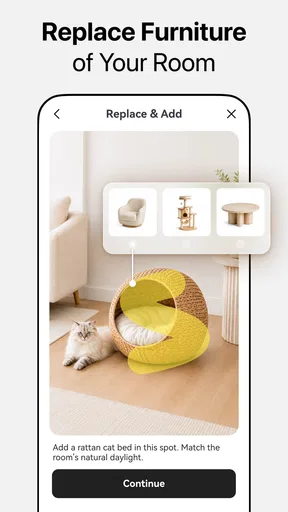
 Analysis by AppCompare
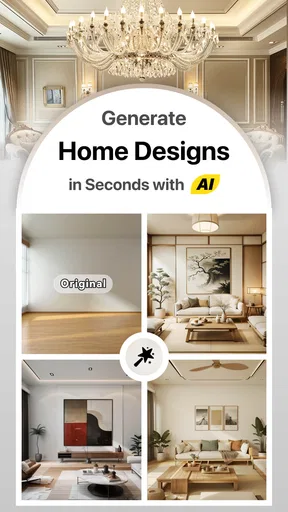
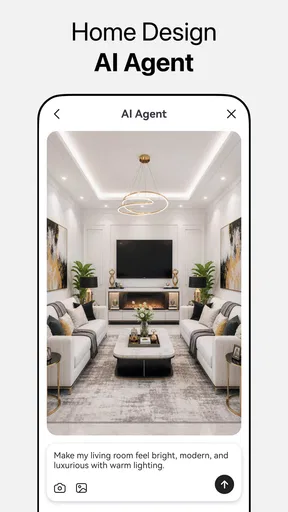
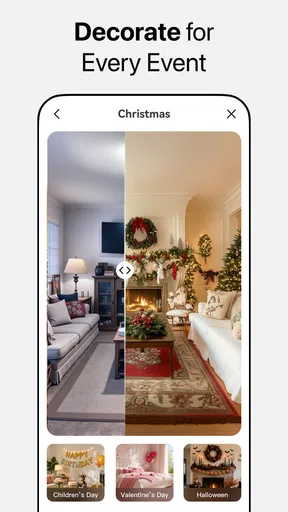
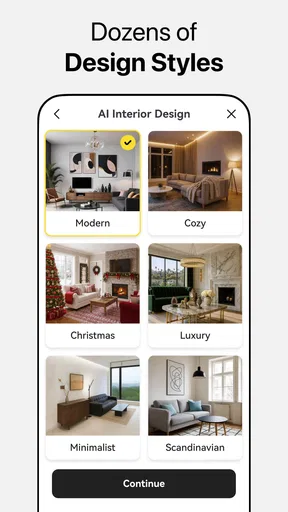
Ever found yourself daydreaming about turning your living space into something straight out of a home decor magazine? Well, let me introduce you to AI Home Design: Interior DecAI. This app is like having a personal interior designer right in your pocket, ready to sprinkle some magic into your home with just a few taps.
A quick concept check before you begin
I’d treat AI Home Design as a way to explore possibilities, not as a substitute for measuring a room or planning a renovation. The appeal is the quick visual thinking: you can try ideas, notice what feels appealing, and use that reaction to guide a real decorating decision. That makes it useful even if you are only considering a new color direction or trying to make one awkward corner feel more intentional.
It is especially suited to people who need a starting point. If you already know the exact dimensions, materials, and products you want, a conventional floor-planning tool may give you more precise control. If you are still asking, “Would this room feel calmer with a simpler look?” an AI-led design app can help you get unstuck. I would keep those two jobs separate: use this app for inspiration, then confirm measurements and practical details before buying furniture or making changes.
The app is in the Art & Design category, and Smart AI DEV presents it as a home-design tool. It is free to install, with in-app purchases ranging from $5.99 to $99.99 per item. That makes it easy to try, but I would look carefully at any paid option before committing. The free starting point is useful for deciding whether the style of the app suits you; a purchase only makes sense if it solves a specific need you have identified.
Getting Started with AI Home Design
So, I downloaded AI Home Design: Interior DecAI out of sheer curiosity, hoping to give my living room a fresh look without breaking the bank. The app is super user-friendly, and setting it up was a breeze. After a quick sign-up, I was ready to dive into its features. The interface? Sleek and intuitive, making it easy for even the least tech-savvy among us to navigate.
Features That Stand Out
Once inside, the app offers a plethora of tools to help you design your space. One of the coolest features has to be the augmented reality (AR) mode. You can virtually place furniture and decor items in your room to see how they fit. I had a lot of fun experimenting with different styles and layouts. Seriously, who knew moving a couch virtually could be so satisfying?
For a more useful AR session, I’d start with one decision rather than trying to redesign the whole room at once. For example, test whether a larger-looking seating arrangement leaves a clear route from the doorway, or whether a lamp or accent piece makes a bare corner feel balanced. Look at the view from the places you actually use, such as the sofa or the entrance. A virtual arrangement can help you compare impressions, but it should not be treated as a guarantee of exact scale or clearance; check the real dimensions before moving or ordering anything.
Worth Reading Before You Choose

Baby Panda World Brings Quick Play to Modern Phones, but Its Game Library Feels Busy

ESPN’s Live Game View Makes Following Close Games Easier

QuizzLand Review: A Good Fit for Short Trivia Breaks, Not Every Player

Basketball Stars: Multiplayer Is Fast, but Can It Recover When Matches Go Wrong?

WEBTOON Turns Phone Updates Into a Better Reading Routine

Link to Windows Runs on Shared Habits, Not Social Feeds
Another handy feature is the style quiz. If you’re unsure what your decor style is, this quiz helps pinpoint it and provides personalized suggestions. I discovered I have a penchant for modern minimalist vibes—a revelation that made me rethink my previous decor choices!
I’d use the quiz as a prompt, not a rulebook. A style label can give you a coherent direction, but real homes rarely fit neatly into one category. If the suggestions feel too uniform, keep the parts that match your taste and mix them with items you already own. This is a sensible way to avoid turning a useful recommendation into pressure to replace perfectly good furniture just to make a room look consistent.
When a design idea meets a mobile connection
Connectivity matters most when you are loading visual material, exploring community inspiration, or moving between design ideas. A room concept is something I may want to revisit while shopping, standing in the space, or talking it over with someone at home, so a stable connection makes those moments more convenient. I would plan on being online for the parts of the experience that depend on fetching or sharing content, rather than assuming every tool will behave the same way without a network.
A practical routine is to explore ideas at home first, where you can take your time, then keep your notes and decisions clear before heading out. If you are comparing a sofa or paint shade in a store, do not rely on a live feed or an image loading instantly in a poor-signal corner. Decide what you want to compare in advance, and use the app when the connection is dependable. That small bit of preparation makes a mobile design session less frustrating.
For instance, imagine you have a free hour after work and want to decide whether the living room needs a reading chair or a smaller side table. I’d use the app at home to try the broad layout, then check the actual floor space with a tape measure before making a purchase. If the app’s visual tools are slow to load while you are out, the measurement and a saved mental picture still help you make a grounded choice. The useful result is not a perfect digital replica; it is a clearer idea of what will fit your everyday routine.
Handling slow or interrupted sessions
Any design experience that relies on loading images or shared content can feel uneven when a connection is weak. If a screen stalls, I would first give it a moment and check whether the rest of the phone is connecting normally, rather than repeatedly tapping controls and creating uncertainty about what has loaded. If the session does not recover, returning to the relevant screen after the connection improves is a calmer approach than making a decision based on a partial preview.
This matters most when you are comparing several looks. Keep the comparison simple: focus on one room, one design question, and a couple of alternatives at a time. That makes it easier to pick up again if you are interrupted and reduces the chance of confusing a new idea with an earlier one. I also recommend taking a moment to record the real-world constraint behind your choice—such as a doorway, a walkway, or an item you are keeping—so a visually attractive option does not distract from how the room needs to function.
The app is rated for Everyone, which makes its general home-design focus approachable for a broad audience. It has a 4.0 average from around 38,000 ratings, and more than 5 million installs. Those figures suggest that many people have tried it, but they do not tell me whether its particular workflow will suit your room or your expectations. I’d judge it by whether it helps you make a specific decision, rather than treating popularity as proof that every feature will be useful to you.
Using visual inspiration thoughtfully
The community feed can be a good place to spot combinations you might not have considered. I would browse with a question in mind—perhaps how to make a small room feel less crowded, or how to bring warmth into a mostly neutral space—rather than scrolling without a goal. Saving a few contrasting ideas is more useful than collecting dozens of images that all look appealing but do not fit your home.
There is also a trade-off in using other people’s rooms as inspiration: polished images can make a layout seem effortless while hiding the everyday details that matter to you. Consider what the picture does not answer for your situation, such as storage needs, cleaning, circulation, or whether a piece would work with what you already own. I find that translating one small element from an image—a color relationship or a way of arranging accessories—is often more practical than copying an entire room.
Exploring the Design Community
The app also connects you with a community of fellow home decor enthusiasts. There’s a feed full of inspiration and ideas, which you can like, comment on, and even save for later. It’s like Instagram for interior design, and it’s a fantastic way to get inspired and share your own creations.
That social layer is best for gathering perspectives, not settling a technical question. Other users can help you notice an appealing combination or offer a fresh point of view, but I would not treat comments as professional guidance on structural work, safety, or exact fit. If you share a room image, think about what is visible in the frame and whether you are comfortable putting that detail into a social space. A tightly framed shot of the area you are redesigning can keep the discussion focused while avoiding unnecessary background details.
What to expect from the cost and version
The app is currently at version 1.4.1 and requires Android 6.0 or later. It is free to download, while optional in-app purchases are listed at $5.99 to $99.99 per item. I would not assume that a paid item is necessary just because it appears during exploration. First work out whether the free experience can answer your design question; if a purchase is presented, check what it offers and whether you are likely to use it more than once.
Compared with a traditional room-planning app, the strongest reason to try this one is its blend of AI-oriented inspiration, visual experimentation, and a social feed. A measurement-first planner is usually a better fit when accuracy and detailed floor plans are the priority. A mood-board app may be simpler if all you want is to collect colors and references. I see this as a middle ground for people who want ideas they can interact with, while accepting that visual inspiration and construction-ready plans are different things.
Who will get the most from it
I can see this working well for renters who want to rethink furniture placement without committing to renovations, first-time decorators who do not yet have a vocabulary for their taste, and anyone trying to make a room feel more welcoming with the belongings they already have. It can also help a household compare preferences: each person can react to a visual direction before the group spends time or money on it.
It is less suitable for someone who needs precise architectural drawings, contractor-ready measurements, or a dependable product specification. It is also not the best choice if you dislike browsing visual suggestions or prefer to plan everything manually. In those cases, a dedicated floor-plan tool, a spreadsheet of measurements, or a simple paper sketch may be more direct. The useful question is whether seeing a concept helps you decide; if not, the extra visual layer may feel like a distraction.
Exploring the Design Community
The app also connects you with a community of fellow home decor enthusiasts. There’s a feed full of inspiration and ideas, which you can like, comment on, and even save for later. It’s like Instagram for interior design, and it’s a fantastic way to get inspired and share your own creations.
Why I Love It
Honestly, the best part about this app is how it makes interior design accessible to everyone. You don’t need a degree in design or a big budget to make your home look amazing. With this home-design app, everything is right at your fingertips, from virtual furniture placement to professional design tips.
The app also offers a shopping feature, which lets you purchase items directly through the app. It’s convenient, but be warned—browsing through all those gorgeous pieces might make your wallet a little lighter!
I would use the shopping option as a source of ideas rather than a reason to buy immediately. Before choosing a product, compare its dimensions with your available space and consider whether it solves the problem you set out to fix. A visually appealing item can still be the wrong choice if it narrows a walkway or duplicates something you already own. For larger purchases, I prefer to pause and check the room in person instead of letting a quick browsing session decide for me.
Final Thoughts
All in all, if you’re looking to revamp your space with ease and creativity, this app is a must-try. It’s like having a trendy designer friend who’s always ready to give you the best advice and ideas. So, whether you’re planning a complete home makeover or just want to spruce up a corner, give it a try. Your dream home is just a download away!
My more grounded recommendation is to treat it as a companion for the early, exploratory stage: use it to narrow your taste, test a few layouts, and collect inspiration you can discuss with the people who share your home. Then move from screen to room by checking dimensions, access, and daily habits. That approach gets the most value from a visual tool without asking it to replace practical planning.
For someone who enjoys experimenting and wants a friendly nudge toward a fresh room idea, I think it is worth trying. If dependable precision, detailed renovation planning, or a distraction-free workflow is essential, choose a more specialized option instead. The connectivity side is a real part of the experience: when content loads smoothly, browsing and comparing feels natural; when it does not, a focused session and a little preparation help. Used with that expectation, AI Home Design can make decorating decisions feel more approachable without pretending that a phone screen can make every decision for you.
Pros
- User-friendly interface with intuitive design.
- Offers a wide range of design templates.
- AI suggestions are surprisingly accurate.
- Seamless AR visualization feature.
- Regular updates with new design trends.
Cons
- Limited free version with essential features locked.
- Requires a stable internet connection.
- Occasional lag in AR mode.
- Initial setup may be time-consuming.
- Some design options lack customization.
FAQs for AI Home Design: Interior DecAI
What platforms is AI Home Design: Interior DecAI available on?
AI Home Design: Interior DecAI is available for both Android and iOS devices. You can download it from the Google Play Store for Android or the Apple App Store for iOS. Make sure your device meets the app's compatibility requirements for the best experience.
Does AI Home Design: Interior DecAI require an internet connection?
While AI Home Design: Interior DecAI can function offline to an extent, certain features like accessing the latest design trends and cloud-based AI processing require an internet connection. To fully utilize all the app's capabilities, a stable internet connection is recommended.
Are there any costs associated with AI Home Design: Interior DecAI?
AI Home Design: Interior DecAI offers a free version with basic features, but for advanced functionalities, such as premium design templates and AI-enhanced tools, you may need to purchase a subscription. Check the app's store page for the latest pricing and subscription options.
How user-friendly is AI Home Design: Interior DecAI for beginners?
AI Home Design: Interior DecAI is designed with an intuitive interface that caters to both beginners and experienced designers. It includes tutorials and guided tours to help new users get accustomed to the app's features, making it accessible for anyone interested in home design.
Can I save and share my designs in AI Home Design: Interior DecAI?
Yes, AI Home Design: Interior DecAI allows you to save your projects locally or in the cloud. You can also share your designs directly from the app via social media platforms or email, making it easy to collaborate with friends or clients.


